As discussed in my last post we are currently working on a project o bring wifi into title one neighborhoods in order to allow them to do school work from home. We are using the Ubiquiti Unifi Enterprise Wifi access points. These are basically just wifi access points that can also form a mesh network allowing a much broader ranged wifi signal. A couple days ago I only had two access points to mess around with the software running on my laptop. But today a lot more gadgets showed up. We now have the cloud key gen2 plus, the Unifi security gateway, and the Unifi switch 8.
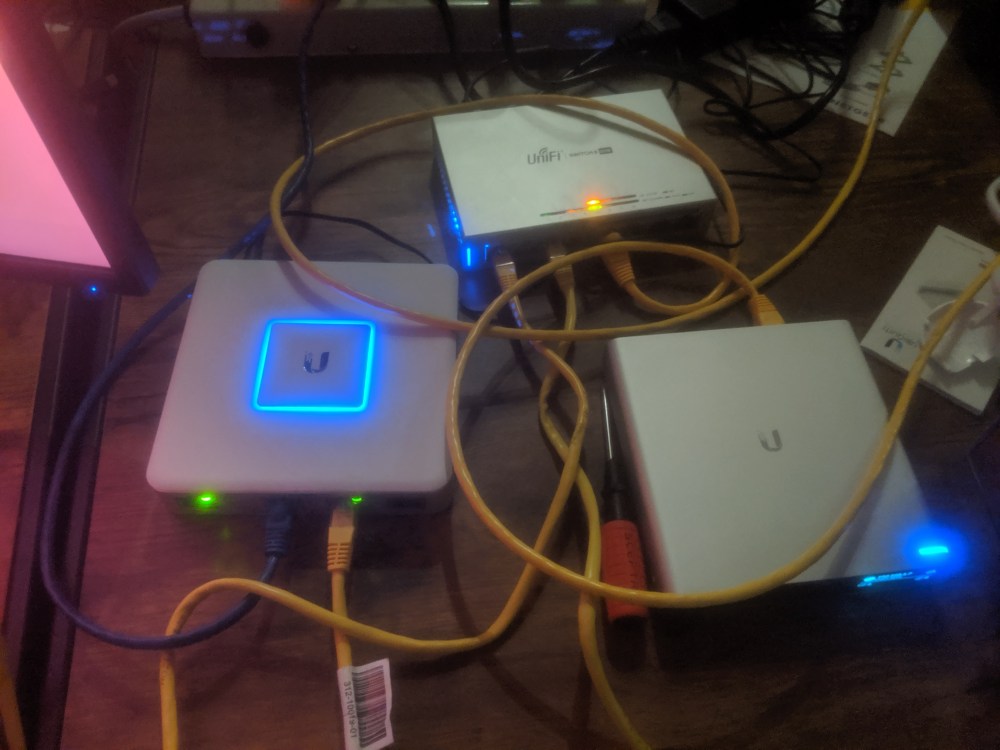
Here are the three of them all connected together. The Unifi security gateway or USG is first in the network and is basically a replacement for a router. It also acts as a firewall and allows you to create Vlans for further wifi customization. The USG has a WAN port and two LAN ports. The WAN port should plug into your cable modem or some other source of internet, in this case, it is plugged into a network switch which provides an internet connection. You then plug the LAN port into the first port on the Unifi network switch which will allow us to connect more wired devices onto the network. If you don’t have an Unifi network switch that’s okay too, you can use any normal network switch with this as well. You can then plug the Unifi Cloud Keygen 2 or any other cloud key version into the POE port on the Unifi network switch which provides it with an internet connection.
A quick note about the Unifi cloud key. Virtually all it is is a computer that is running the Unifi Controller software so you don’t need to dedicate a computer to do this. I also believe it provides the ability for remote access to your network so you can change router and wifi settings from off-site. It is rather expensive so if you didn’t want to use this you could simply run the Unifi controller software on your laptop. The controller software is only needed for changing settings once settings are set and your wifi network is configured everything will still work even after closing the controller software.
Once everything is properly wired you can run a direct ethernet connection from the network switch into your laptop or computer. From here navigate to the IP address displayed on your Unifi cloud keys screen. This IP address was handed out via the USG. There is also an IP address on the Unifi cloud keys screen for cloud protect which provides access to the USG’s interface. If you don’t have a cloud key just download the Unifi controller software and follow the setup guide from the on-screen prompts. Once you are in the software you want to go to the Devices tab on the left. If you have everything I have you should see two devices the network switch and the USG if not there are most likely problems with your wiring.
At my first go around trying to set this up I ran into a few problems. My Cloud Key refused to connect to the internet and therefore did not allow me to log into the controller software. To solve this problem I simply factory reset both the cloud key and the USG. After this, I went into the Unifi controller software on the cloud key and it indicated that adoption of the USGwas failed. To correct this I simply went to the settings for the USG device and forgot it from the network then when it reappeared I was able to readopt it with no trouble. It was at this point that everything worked perfectly and I was able to access all my devices and see bandwidth usage and start playing with settings. The Unifi control software is extremely advanced and allows you to change almost every setting you could imagine for setting up enterprise-grade wifi. However, we really only care about a few key settings.
We need to be able to create to SSIDs that when connected to each have different permissions and bandwidth limitations. On the educational SSID the bandwidth will be higher allowing for virtual learning through video streaming. While on the public SSID bandwidth is significantly lower still allowing the community as a whole to check emails and do light web browsing but not stream services such as Netflix. Logging into the network also needs to be easy and personalized. You should only be able to log onto the educational SSID if you are using a school email to log on so it needs to be able to check that somehow which is next on my to-do list to figure out. We also need the ability to set up a VLAN that is capable of blocking out certain IPs so there can be a specific police network that allows them to communicate and also access the police camera video streams through the network.
We also have the pro version of the access point coming in the next few days which will allow for greater range and wifi penetration. Currently, a single AP covers my entire house but it’s just barely there on the other end of my house. The pro access points aren’t significantly higher cost and will result in much better wifi coverage and signal strength allowing us to potentially capture more than one house per AP.

 Devin Willis